To connect GA4 to Claude, enable the Analytics Admin and Data APIs, sign in with Application Default Credentials that request analytics.readonly, add Google's analytics-mcp server to Claude Desktop or Claude Code, and leave the --allow-write flag off. Then list the server's tools and ask a narrow first question before you rely on any answer.[1][2]
Published · Sources checked · By Asfand Yar Junejo, publisher asfandjunejo.com
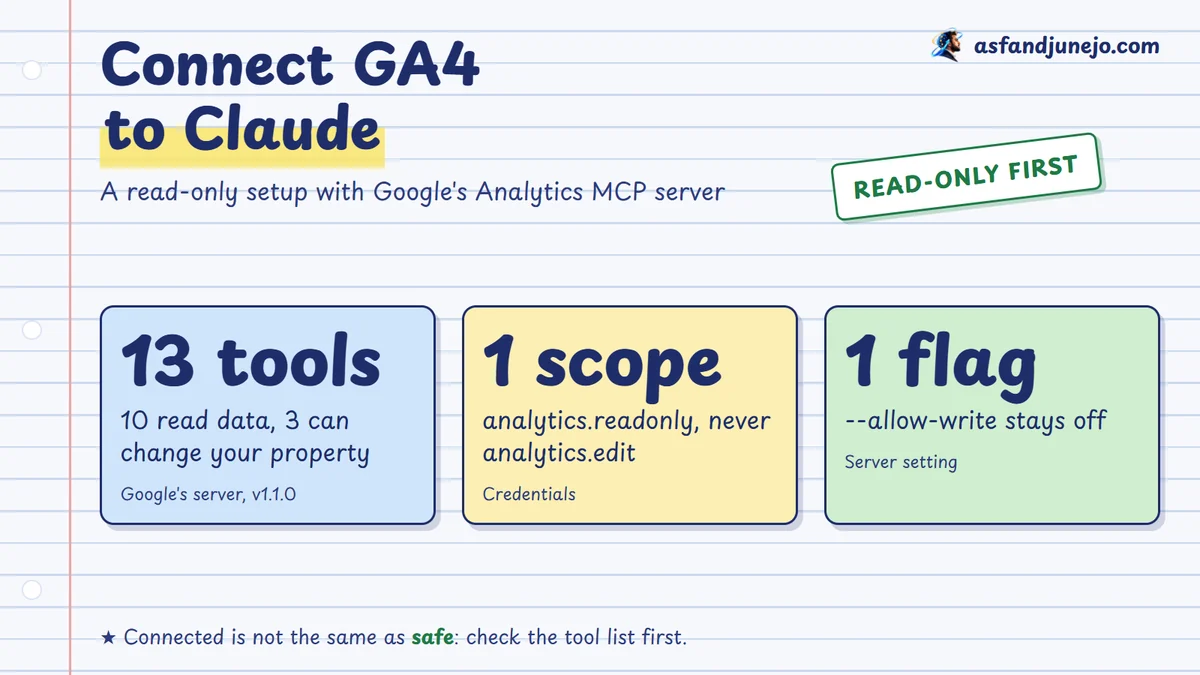
This guide covers the Google Analytics 4 side only. It follows Google's own server, analytics-mcp, which I checked against its README and PyPI page on November 16, 2026 (version 1.1.0, published November 6, 2026). For Search Console, the five-check safety review and the full traffic-investigation method, use the complete guide to connecting Google Search Console and GA4 to Claude.
What do you need before you connect GA4 to Claude?
You need Claude Desktop or Claude Code, Python 3.10 or newer with pipx, a Google Cloud project with the two Analytics APIs enabled, and a Google account that can already open the GA4 property.[2]
- A Claude client: Claude Desktop (JSON configuration) or Claude Code (
claude mcp add).[4][5] - Python and pipx: the server's README lists Python 3.10+ and asks you to install pipx.[2]
- Two APIs: the Google Analytics Admin API and the Google Analytics Data API, enabled in your Google Cloud project.[2]
- Property access: credentials for a user who can already see the property. Enabling an API does not grant access to any GA4 property.
Use a dedicated Google account, or one that holds only the reporting access you need, rather than an administrator account. Least privilege at the property is a separate control from the OAuth scope, and you need both.
Which tools can Claude use, and which can change data?
Version 1.1.0 documents 13 tools: ten read configuration or report data, and three create or modify resources and only work when you start the server with --allow-write and the analytics.edit scope.[2]
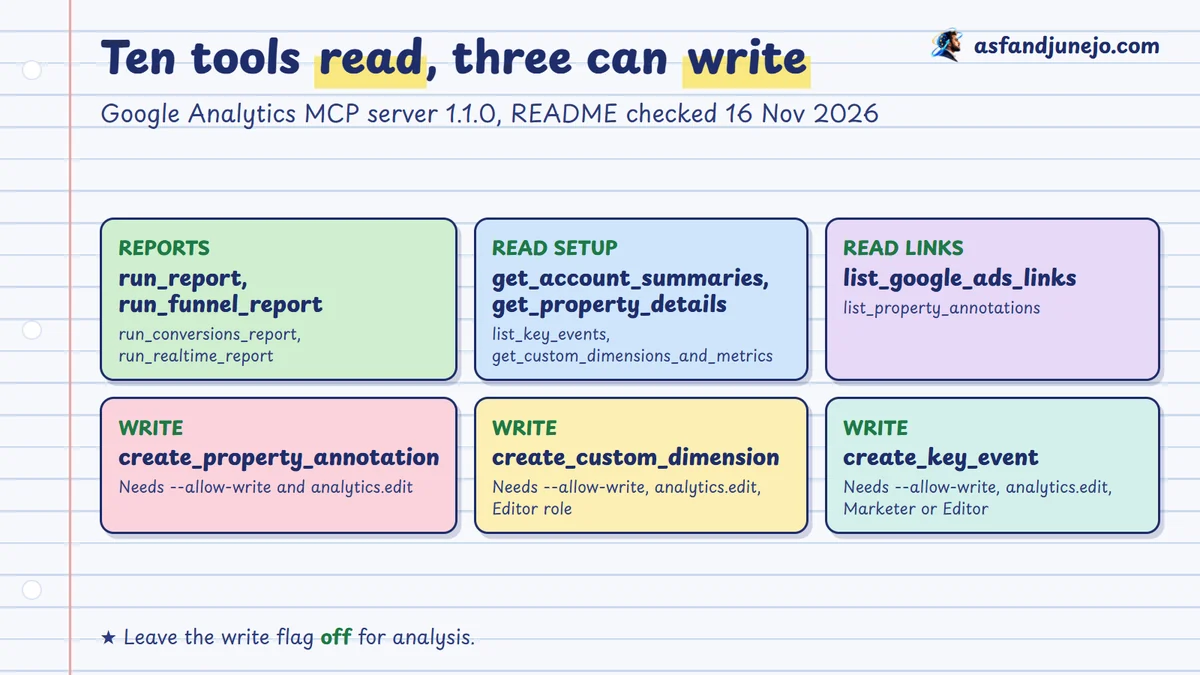
| Tool | What it does | Access |
|---|---|---|
get_account_summaries | Lists the accounts and properties you can see | Read |
get_property_details | Details about one property | Read |
list_google_ads_links | Google Ads account links on a property | Read |
list_property_annotations | Annotations on a property | Read |
list_key_events | Key events (formerly conversions) | Read |
get_custom_dimensions_and_metrics | Custom dimensions and metrics | Read |
run_report | A standard Data API report | Read |
run_funnel_report | A funnel report | Read |
run_conversions_report | A conversions report | Read |
run_realtime_report | A realtime report | Read |
create_property_annotation | Creates an annotation | Write: needs --allow-write and analytics.edit |
create_custom_dimension | Creates a custom dimension | Write: also needs the Editor role |
create_key_event | Marks an event as a key event | Write: also needs the Marketer or Editor role |
The write tools are the reason to check the flag. The same switch also exists as an environment variable, ANALYTICS_MCP_ALLOW_WRITE, which defaults to false. For analysis, never set either one.[2]
Confirmed Tool names, the write requirements and the environment variable come from the repository README (checked November 16, 2026). Earlier posts and screenshots may list fewer tools, because the list has grown across releases.
How do you create read-only credentials?
Sign in with gcloud auth application-default login and request analytics.readonly, plus the cloud-platform scope that Google's setup also asks for, then note the path where the credentials file is saved.[2]
The README gives this form for user credentials with your own OAuth client:
gcloud auth application-default login \
  --scopes https://www.googleapis.com/auth/analytics.readonly,https://www.googleapis.com/auth/cloud-platform \
  --client-id-file=YOUR_CLIENT_JSON_FILE
It also documents service-account impersonation, which avoids a downloaded key:
gcloud auth application-default login \
  --impersonate-service-account=SERVICE_ACCOUNT_EMAIL \
  --scopes=https://www.googleapis.com/auth/analytics.readonly,https://www.googleapis.com/auth/cloud-platform
After login, the CLI prints Credentials saved to file: [PATH]. Copy that path; you need it in the next step. Two cautions apply. First, cloud-platform is a broad Google Cloud scope, not a Google Analytics permission, so the identity's Cloud roles still matter. Second, the credentials file can hold refresh-token material, so keep it out of source control, screenshots and logs.[2]
Do not add analytics.edit unless you deliberately want the write tools. That scope is what lets the three write tools work.
How do you add the server to Claude Desktop or Claude Code?
Register pipx run analytics-mcp as a local server, pass GOOGLE_APPLICATION_CREDENTIALS and GOOGLE_CLOUD_PROJECT as environment variables, and do not add --allow-write.[2]
Claude Desktop
In Claude Desktop, open Settings, then Developer, then Edit Config. The file is ~/Library/Application Support/Claude/claude_desktop_config.json on macOS and %APPDATA%\Claude\claude_desktop_config.json on Windows. Keep any existing entries and add:[5]
{
  "mcpServers": {
    "analytics-mcp": {
      "command": "pipx",
      "args": ["run", "analytics-mcp"],
      "env": {
        "GOOGLE_APPLICATION_CREDENTIALS": "ABSOLUTE_PATH_TO_CREDENTIALS_JSON",
        "GOOGLE_CLOUD_PROJECT": "YOUR_PROJECT_ID"
      }
    }
  }
}
Notice that args has no --allow-write. Use absolute paths, escape backslashes on Windows, save the file and fully quit and restart Claude Desktop.[5]
Claude Code
claude mcp add analytics-mcp \
  --scope user \
  -e "GOOGLE_APPLICATION_CREDENTIALS=ABSOLUTE_PATH_TO_CREDENTIALS_JSON" \
  -e "GOOGLE_CLOUD_PROJECT=YOUR_PROJECT_ID" \
  -- pipx run analytics-mcp
claude mcp list
The -- separates Claude's own options from the command that runs the server. The --scope user flag controls where Claude Code stores the entry (all your projects, not shared with a team). It says nothing about Google permissions.[4]
What should you ask first?
Ask what the server can do, then ask for one property's details, and only then run a report with an explicit date range, metric and dimension, so you can check each answer against the GA4 interface.[2]
- Inventory:
what can the analytics-mcp server do?The answer should match the tool table above. If it lists write tools you did not expect, stop and re-check your configuration. - Property:
Give me details about my Google Analytics property with 'xyz' in the name.Confirm that the property ID and name are the ones you intended. - One report:
What were the most popular events in my Google Analytics property in the last 180 days?The three prompts above are adapted from the sample prompts in Google's README. - Make it show its work: ask Claude to state the property ID, date range, metrics and dimensions it used, then compare the total with the same report in GA4.
A fluent answer is not evidence. If the numbers differ from the interface, check the date range, time zone, filters and whether the report is sampled or thresholded before you trust either figure. GA4 and Search Console count different things, so do not expect Analytics sessions to equal Search Console clicks; the full guide explains why.
What if it does not work?
Most failures are configuration or authorization problems: a mistyped path, a client that was not restarted, a missing API, or a Google account that cannot open the property.
- The server does not appear in Claude Desktop: restart it completely, check the JSON syntax, make sure every path is absolute, and read
mcp.logandmcp-server-analytics-mcp.login the Claude logs folder (%APPDATA%\Claude\logson Windows,~/Library/Logs/Claudeon macOS).[5] pipxis not found: a missing command may only mean it is not on the path the client uses. Use the full path to thepipxexecutable as thecommand.- Claude Code does not list it: run
claude mcp listand check the scope you chose.[4] - Claude reports "(not provided)" for search keywords: that is not a connection fault. GA4 does not hold organic search queries; link Search Console to see them, as this explanation describes.
- No properties appear: a missing property usually means an authorization problem, not a broken install. Check the Google account, the project, the property ID and that both APIs are enabled before you widen any permission.
Frequently asked questions
Can Claude connect directly to Google Analytics 4?
Yes, through a compatible MCP server such as Google's analytics-mcp. Claude only sees what the server's tools return, not the Analytics interface, and the server needs Google credentials for a user who can access the property.
Is the Google Analytics MCP server read-only by default?
Its write tools are enabled only when you start it with --allow-write (or set ANALYTICS_MCP_ALLOW_WRITE) and grant the analytics.edit scope. Without those, you have the read tools, but check the tool list your client shows instead of assuming.
Do I need Google Cloud to connect GA4 to Claude?
Yes for this setup. The server uses a Google Cloud project with the Analytics Admin API and Analytics Data API enabled, and Application Default Credentials for authentication.
Can I use Claude Code instead of Claude Desktop?
Yes. Use claude mcp add with the same server command and environment variables, then confirm it with claude mcp list.
Will Claude's GA4 numbers match what I see in Google Analytics?
They should match the same report with the same property, date range, metrics and filters, because the server calls the Google Analytics Data API. Differences usually come from a different date range, time zone, filter or data threshold, so make Claude state its parameters and compare.
Where to go next
Once GA4 answers a narrow question correctly, add Search Console through a separately reviewed read-only server, then use the five-check review in the complete guide before you trust conclusions.
The complete guide covers the Search Console server, the five-layer audit and a traffic-investigation method, and the missing-data guide explains why reports sometimes disagree. If your GA4 shows no data at all, fix the tracking first; a perfect connection to an empty property proves nothing.
Sources and method
Tool names, scopes, flags, commands and the environment variable come from Google's repository README and PyPI page, and the client steps come from the Claude Code and Model Context Protocol documentation, all checked on November 16, 2026.
I did not run this setup against a client's property for this guide. The sample prompts are Google's, and the troubleshooting list combines the MCP documentation with the checks that follow from how access works.
- Google. Google Analytics MCP overview. developers.google.com (opens in a new tab)
- Google Analytics. google-analytics-mcp: README, tools, scopes and the --allow-write flag (release 1.1.0). github.com (opens in a new tab)
- Python Package Index. analytics-mcp, version 1.1.0 (requires Python 3.10 or newer). pypi.org (opens in a new tab)
- Anthropic. Claude Code MCP documentation: adding a local stdio server and installation scopes. code.claude.com (opens in a new tab)
- Model Context Protocol. Connect to local MCP servers (Claude Desktop configuration and troubleshooting). modelcontextprotocol.io (opens in a new tab)
Confirmed Tools, scopes, commands and version checked against the sources above. Hypothesis The troubleshooting order is an editorial suggestion, not a Google procedure.